
Hours and holidays
How to change business hours on Google: regular, special and holiday hours
How to change business hours on Google: main hours, special hours for holidays and Black Friday, more hours, and why Google changes them.
Published
Here's how to change business hours on Google. Open your Business Profile, select Edit profile, then Hours. What you do next depends on the kind of change. A new normal week goes under your main hours. A holiday, an event or a short closure goes under special hours, so your normal week stays as it is.
Picking the wrong one is an easy mistake. Someone changes their main hours for a public holiday, forgets to change them back, and the profile is wrong for weeks. This post shows which setting to use, how to change each one, and what to do if Google keeps changing your hours back.
Which setting to use
Google gives you four ways to show when you're open. Here's how we decide between them.
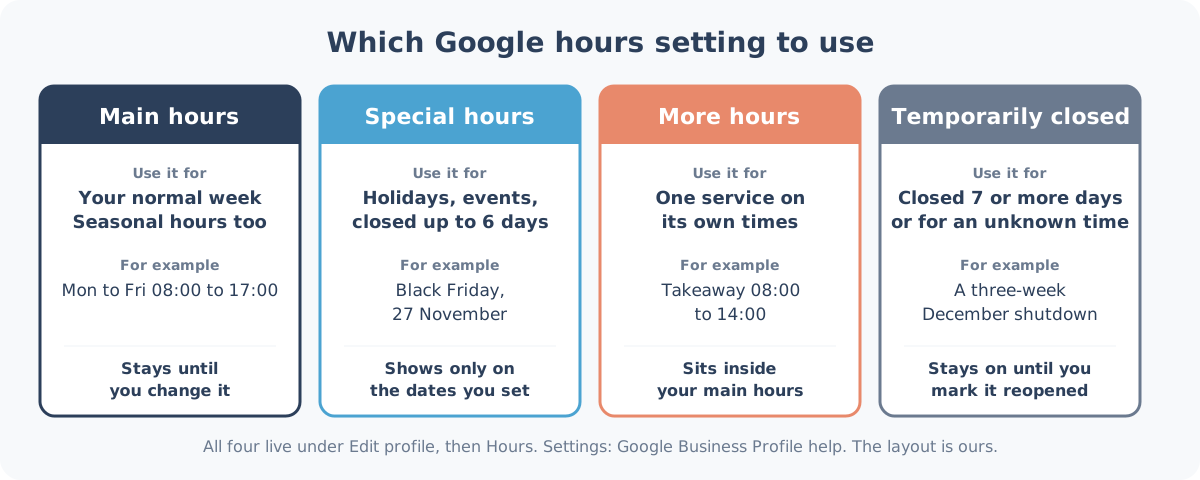
| Your situation | Setting | How long it lasts |
|---|---|---|
| Your normal week has changed for good, or for the season | Main hours | Until you change them |
| A public holiday, an early close, an event or a closure of up to 6 days | Special hours | Only the dates you set |
| One service runs on different times, like delivery or takeaway | More hours | Until you change them |
| You're shut for 7 or more days in a row, or you don't know for how long | Temporarily closed | Until you mark the business reopened |
That table is our own summary of Google's business hours guidelines and help pages. Each setting is explained below.
How to change your regular hours
Your main hours are your normal week. Google's guide to editing business hours says they should show your hours "for a normal week". To change them:
- Go to your Business Profile.
- Select Edit profile, then Hours.
- In the "Business hours" section, next to "Hours", select Edit, then Open with main hours.
- Tick each day you're open and set the times with the dropdowns.
- Select Save.
If you close over lunch, say a Bellville hardware store that shuts from 13:00 to 14:00 on Saturdays, Google says to create 2 entries for the same day with different times. Add the morning, select Add hours, then add the afternoon.
After you save, Google adds a message to your profile confirming the update, and a post about the change on the Updates tab on phones. You can edit that post to explain why, or delete it.
Seasonal businesses
If your hours change with the season, Google's guidelines say you may use your current seasonal hours as your regular hours. Say a Muizenberg surf school runs longer days from December to March. Change the main hours when the season starts, and again when it ends. If you close completely for the off-season, the guidelines say to mark the business temporarily closed and set your regular hours again when you reopen.
How to set special hours for holidays and events
Special hours are for the odd day. Google's special hours guide lists holidays, special events and other exceptional circumstances, and says they cover closures of up to 6 days in a row. They only show on the dates you set, so your normal week comes back without you touching anything.
- Go to your Business Profile.
- Select Edit profile, then Hours.
- Next to Special hours, select Edit.
- For a date Google suggests, select Review. For any other date, select Add a date.
- Leave Closed ticked if you're shut, or untick it and enter the hours you'll trade.
- Select Save.
Two things catch people out. Special hours only show if your business hours are set to "Open with main hours". And Google suggests you confirm official holidays even when your hours don't change, so customers know the hours are right.
For the South African public holidays to the end of 2027, see our guide to Google holiday hours. For December, we've done a separate festive season trading hours checklist.
Black Friday: Friday 27 November
Black Friday is on Friday 27 November this year. It's on Google's holiday list for the United States, but not on the South African one, and it isn't one of our public holidays under the Public Holidays Act. So Google won't suggest the date. If you're trading different hours, add it yourself with Add a date.
Say a Durban North clothing shop opens at 06:00 on the Friday and stays open until 20:00 on the Saturday. That's two special hours dates, one for Friday 27 and one for Saturday 28 November. If your hours are the same as usual, leave it alone.
Do it a week or so before, so the hours are right by the time people start planning their shopping.
How to set more hours for delivery, takeaway and pickup
More hours are for a service that runs on its own times. Google's more hours guide mentions delivery, takeout, drive through and pickup. A Sea Point café that's open 07:00 to 16:00 but only does takeaway from 08:00 to 14:00 would put the café's times in main hours and the takeaway times in more hours.
- Go to your Business Profile.
- Select Edit profile, then Hours.
- Under "Add more hours", choose the type, such as delivery or takeout.
- Select the days and set the times.
- Select Save.
Google says more hours don't show until you've set your regular hours, and that they should generally sit inside your main hours. Each type is set separately.
When to mark your business temporarily closed
If you're shut for 7 or more days in a row, or for an unknown time, Google's special hours guide says to mark the business temporarily closed instead. The steps are on Google's page on marking a business closed: Edit profile, then Hours, then next to "Hours" select Edit and choose Temporarily closed.
The same page says that for broad searches, temporarily closed businesses can rank after open ones. And the status doesn't switch off by itself. On your first day back, mark the business reopened.
Why Google keeps changing your business hours
You set your hours, and a week later they're different. It happens. Google's page on Google updates to your profile says it gathers information from different sources, like user reports and licensed content, and may update your profile if those sources say your details are wrong or out of date. Our Google Business Profile health check is a quick way to spot other details that have drifted.
Here's what to check:
- Blue text in the editor. Google says information it changed shows in blue in the profile editor, with a notification at the top of the page.
- Suggested edits. When someone suggests a change that needs your review, you have 4 days to accept or reject it. If you don't respond, Google may publish it if other public information, such as your website, supports it. We've written more about what to do with suggested edits.
- Your other listings. If your website, Facebook page and door sign show old hours, that's the public information Google can lean on. Change them the same day you change Google.
Our no-cost holiday hours planner helps with that last part. Enter your hours once and it gives you a WhatsApp Business away message and status, website banner text and a printable A4 door sign.
If your profile doesn't show up on Maps at all, start with our 7-point check for a business not showing on Google Maps.
Want someone to keep an eye on it?
Every Heights Care plan includes keeping your Google holiday and special hours up to date, from R1,490 a month, month-to-month. See how we look after holiday and special hours and what each plan costs.
Want us to check your hours? WhatsApp Shaun on 075 330 9812 with a link to your Google listing, or see what Local Heights does.